 ExpressAgain
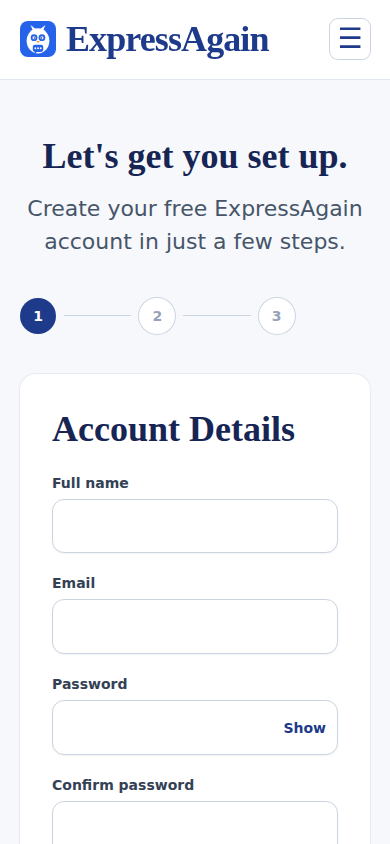
Go to the Sign up page and create an account with your name, an email address and a password. The form asks who the app is for: This is for me; Family member or caregiver (setting it up for someone I care for); Speech therapist or clinician (setting it up for a patient); Hospital, facility or organization; or Someone else. It also asks who sent you, so we know how families find us.
If a family member sets the account up, they are added to My People right away as the first person and the primary contact, and the patient's name you typed carries into the guided setup so nothing is asked twice.
The account that creates the circle is the owner. Everyone else joins that circle later with an invitation — see Who is who.
Step by step
- 1Open the Sign up page.
- 2Type your name, email and a password.
- 3Choose who the app is for and, if it is for someone else, their name.
- 4Continue into the guided setup.
What it looks like
Screens at phone width, with sample names — no real person’s information.