 ExpressAgain
ExpressAgain can send notifications to your phone the way a text pops up, straight from the website. There is no app to download from an app store.
In a family circle, a notification arrives when someone posts on the family feed (or the friends feed, for friends) or comments on your post; when a Love Bucket note arrives (caregivers) and when your loved one writes back to your note; when the daily note is on the feed, or ready for you to post, and when a daily update goes out; and, for whoever runs the account and caregivers, when the care team posts on the care-team feed with Notify the team and the day before an appointment. Each one goes to the same people who get that email or text today, never more. Medication reminders are new and have no email or text: when a set on the medication schedule is due, they go to whoever runs the account and caregivers, and to the circle's own care team.
On a care-team or Home Team login, or in an organization: when there is a care alert (a new reading alert needs a look, following your own Alerts choice: every reading, only flagged ones, or none on Daily digest or Off; and, for an organization, a flagged alert that waited past the practice's escalation window), and when someone posts on the care-team feed with Notify the team or replies to your post there; and when a set on the medication schedule is due for someone you care for.
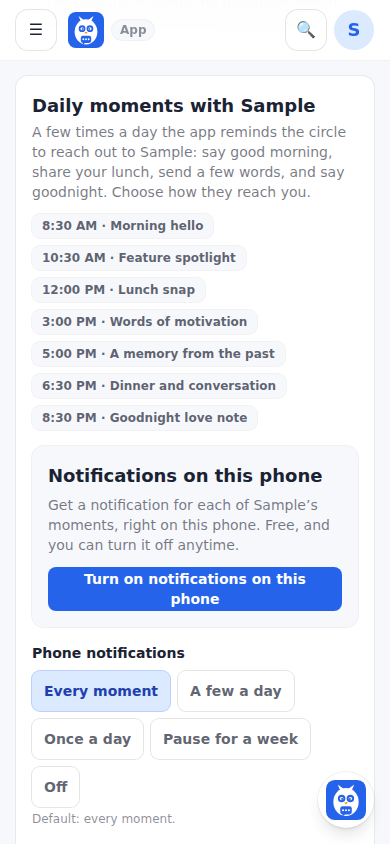
The daily moments: a few times a day, everyone in the circle gets a short reminder to reach out: say good morning, try a feature, share your lunch, send a few words of encouragement, a memory from the past, dinner and conversation, and goodnight. Phone notifications come first: when one reaches your phone, the email for that moment is skipped, unless you picked your own email setting. The daily moments start once at least one family member or friend has joined the circle.
Notifications never include health details: never a reading, a medicine or a diagnosis, and never what someone wrote. They say that something happened and where to look; tap one and ExpressAgain opens on that page. The patient's first name appears only where the text or email for the same thing already carries it (the feed, the Love Bucket, the daily note); care alerts, the care-team feed, appointment reminders and medication reminders carry no name. A medication reminder says only which set is due (The evening set is due), never a medicine or a time. An SOS from the Emergency page, a missed or refused dose, and new or changed appointments are not phone notifications.
What reaches this phone: under the card, one switch for each kind (Posts and comments, Love Bucket notes, The daily note and daily updates, Care-team feed, Appointment reminders, Medication reminders, Daily reminders), all on to start, and Quiet at night (on to start: nothing but care alerts and medication reminders from 9 PM to 8 AM — a night dose is the reason for the reminder). Care alerts and urgent stay on for as long as notifications are on for that phone. Pause for a week under Phone notifications pauses everything but care alerts. Several things of the same kind within five minutes become one notification, and a newer one replaces the older one on the lock screen.
Where the switch is: open the menu and tap Settings (it may say Profile & Settings). If you set up the account, it is on the Family & Friends tab; family members and friends find it under Notifications & Alerts. Under Daily moments, look for the Notifications on this phone card. The Family & Friends feed may also show a Turn on notifications card once; it does the same thing. On a care-team or Home Team login, open Today, then Alerts on your dashboard: the card is under On this phone. In an organization, open Settings: Your phone notifications. An agency office login has no Alerts tab, so it cannot turn them on yet.
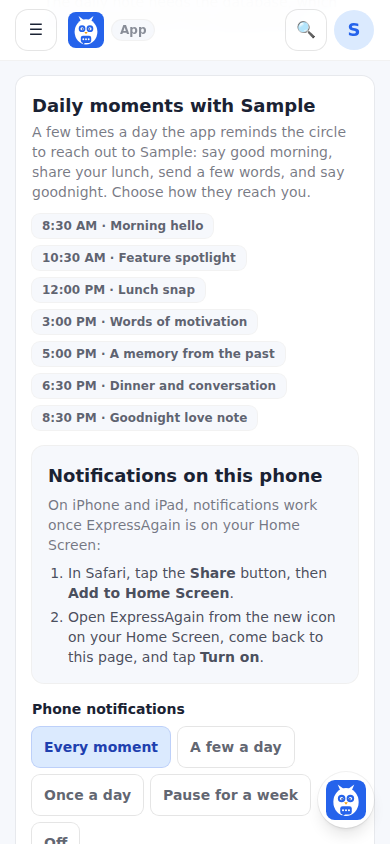
iPhone and iPad: Apple only shows notifications for a website that has been added to the Home Screen and opened from that icon, on iOS 16.4 or newer. In Safari itself the card shows the two steps instead of a button, because a button there could never work. Once ExpressAgain is on the Home Screen, sign in inside it (it keeps its own sign-in, separate from Safari).
Android: Chrome can turn notifications on right from the website. It also works on a computer, in Chrome, Edge or Firefox.
Turning them off: in the same card, tap Turn off on this phone, or switch off any kind under What reaches this phone. Under Phone notifications you can also choose how many daily moments: Every moment, A few a day, Once a day, Pause for a week, or Off. Each phone or computer is turned on and off on its own. If you blocked notifications by mistake, allow them for ExpressAgain in the phone's settings, then come back and tap Turn on again.
On iPhone or iPad
- 1Open Safari or Chrome and go to www.expressagain.com.
- 2Tap the Share button (the square with an arrow pointing up; on newer iPhones it can be inside the three-dots menu).
- 3Scroll down, tap Add to Home Screen, then Add. If you see Open as Web App, leave it on.
- 4Open ExpressAgain from the new icon on your Home Screen.
- 5Sign in.
- 6Open the menu, tap Settings, then the Family & Friends tab (family and friends: Notifications & Alerts).
- 7Under Daily moments, tap Turn on notifications on this phone.
- 8When your iPhone asks, tap Allow.
On Android
- 1Open Chrome and go to www.expressagain.com.
- 2Sign in.
- 3Open the menu, tap Settings, then the Family & Friends tab (family and friends: Notifications & Alerts).
- 4Under Daily moments, tap Turn on notifications on this phone.
- 5When your phone asks, tap Allow.
On a care-team, Home Team or organization login
- 1On iPhone, first add ExpressAgain to the Home Screen and open it from the icon (the steps above); on Android, open Chrome.
- 2Sign in with your care-team email and password.
- 3On your dashboard, open Today, then Alerts. In an organization, open Settings instead.
- 4Under On this phone (organization: Your phone notifications), tap Turn on notifications on this phone.
- 5When your phone asks, tap Allow.
To choose what arrives, or turn them off
- 1Open the same place on that phone.
- 2Under What reaches this phone, switch off any kind you don't want.
- 3Or tap Turn off on this phone, or choose fewer daily moments under Phone notifications.
What it looks like
Screens at phone width, with sample names — no real person’s information.