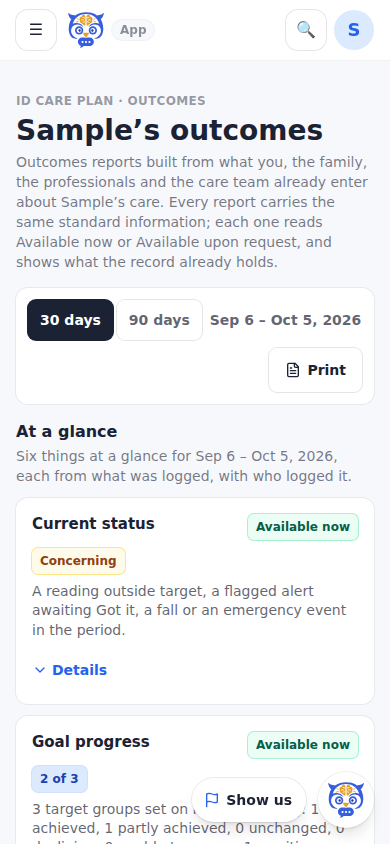
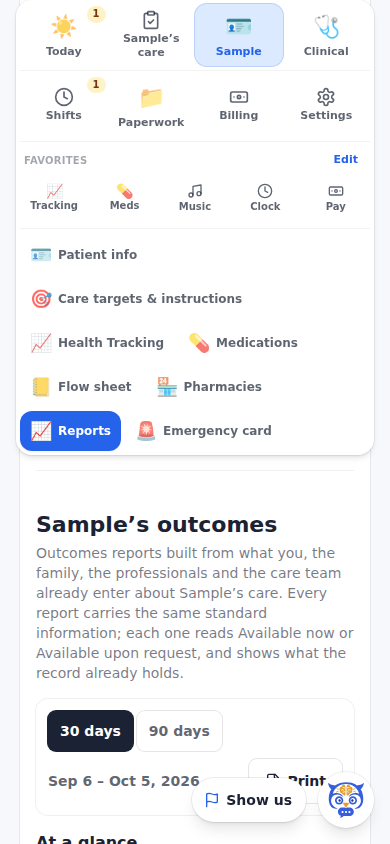
Outcomes (under ID Care Plan, right after Reports) is a reports section about outcomes: whether the care that was planned happened, whether the care targets are being met, what changed, whether the team responded, and how the people who help are holding up. Every number is a count of what was logged in the app, with who logged it, over the last 30 or 90 days on the patient's clock. There is no claims data, no OASIS and no risk adjustment, and no number is ever interpreted.
The top of the page has six cards: Current status (Stable, Improving, Concerning or Urgent, from readings outside the care team's targets, falls, flagged alerts awaiting Got it, ER visits and hospital admissions, and open SOS alerts), Goal progress (how many target groups are Achieved, Partly achieved, Unchanged, Declining or Unable to assess), Care completed (shifts completed against the weekly schedule, checklist items done and left, visits done and visits that didn't happen), Changes noticed (new symptom entries, falls, weight, sleep and personal-care entries, with who reported each), Team response (flagged alerts unreviewed and acknowledged, SOS alerts resolved, team tasks open and done, feed mentions answered) and Family caregiver capacity (Available, Needs support, Coverage risk or Not available, from the family caregiver check-in and the open shifts). Each card has Details, closed until tapped, that lists every item with its provenance: patient-reported, family-reported, professional-observed, clinician-verified or calculated.
Under the cards, eleven closed sections, one per framework type, in this order: Person-centered outcomes, Care coordination outcomes, Care execution outcomes, Safety and change detection outcomes, Independent living outcomes, Family caregiver outcomes, Patient-reported outcomes, Clinical outcomes, Condition-specific outcomes, Payer value outcomes and Regulatory quality outcomes. Each section's header says how many reports it holds and how many read Available now. Open one to see its reports.
Every report carries the same standard information: its name, the question it answers, its type, who it is for, its data sources (the real screens and tables), the period, the provenance of its numbers, its availability, when it was last updated and a plain one-line result, then What the record holds, the lines already filled from the app. Copy puts that block on the clipboard as plain text; Print prints that one report with a header naming the patient and the period. Print at the top prints the whole page with every section open.
The two availability words are computed from the record, never promised. Available now means the report's own facts are in the record for the period, so it reads in full. Available upon request means part of it is still to come, and the card shows what the record already holds, prepopulated. An on-request report has one button, Request this report; pressing it records the request the same way Suggest a feature does, and the button then reads Requested for that account.
Two things are added to the record here. Goal status: the account owner and the doctors and nurses on the care team who may change the targets (physician, nurse, hospice and palliative logins) can give each target group with values, such as Glucose or Blood pressure & pulse, a status, with an optional note; the newest status per group is the current one, and the IDC Team feed gets one quiet line. The family caregiver check-in: five questions for the unpaid family caregivers (the account owner and caregiver-role accounts), each a three-step choice (Is the week covered? How confident are you with the care tasks? How has your own sleep been? How stressed do you feel? Is there backup?), saved with the date and who answered and shown as a trend with a strain score from 5 to 15. The Family caregiver capacity card reads Available upon request until the first check-in exists, prepopulated with the coverage facts.
Who sees it: the account owner and caregiver-role accounts open the family page. On the care-team dashboard, every home care team login (aides, CNAs, LPNs, RNs and companions) and every ID care team login (the doctors, nurses, therapists and visiting clinicians) finds the same Outcomes under the health reports on the Reports tab, behind the patient's door; the agency office does not, and the family and friends tiers do not. Nothing on this page shows a pay amount: the Home Team's pay stays on Home Team management. Nothing here sends an email, a text or a notification.
Step by step
- 1Open the menu, then ID Care Plan, then Outcomes (on the care-team dashboard, open the patient's door, then Reports, and scroll under the health reports).
- 2Pick 30 days or 90 days, and read the six cards; tap Details on a card to see every item with its provenance.
- 3Open a framework type, such as Safety and change detection outcomes, and read a report's standard information and What the record holds.
- 4Tap Copy to copy a report as plain text, Print to print that one report, or Request this report on an on-request one.
- 5The account owner and the care team's doctors and nurses: open Goal status and give a target group a status, then Save.
- 6The account owner and caregiver-role accounts: open Family caregiver check-in, answer the five questions and tap Save check-in.
What it looks like
Screens at phone width, with sample names — no real person’s information.