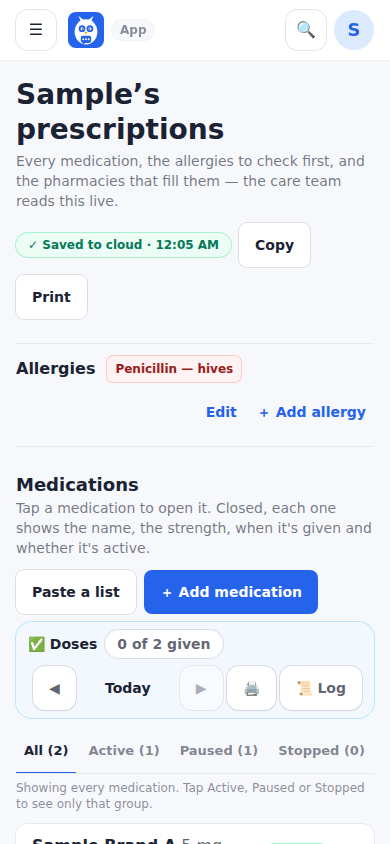
Prescriptions holds the patient's medications, allergies and pharmacies on one page. Closed, each medication shows its name, whether it is active and when it is given; open it and the top shows one short line (like 5 mg · 1 tablet · twice a day) and today's dose chips, ready to log. Everything else sits in named sections that start closed, each with a one-line summary: Dose and schedule (strength, form, how much, times a day, when, and the reminder schedule), Prescription (reason, prescriber, pharmacy and the Rx details from the bottle), Dose history, On hand (how many are in the house), Refills log, and Name and status (the names, the start date, Active, Paused or Stopped with the why, and Remove). The sections you open are remembered on that device. After you log a dose, Next medication takes you to the next active medication with a dose still open and opens it; the one you were on stays open. Any number of medications can be open at once, and Open all, Open all details and Close all sit above the list. The clinicians' Medications tab uses the same sections, read-only. Tabs count All, Active, Paused and Stopped. You can paste a whole medication list in at once.
As needed: a medication given only when it is needed (PRN) is Active (as needed). Set it under Name and status, where Status offers Active (on a schedule), Active (as needed), Paused and Stopped, or under Dose and schedule, How is it taken? On a schedule or As needed; both set the same thing. Choosing As needed hides the times a day, When, When is it taken? and Which days, and shows Most a day (from the label, optional); choosing On a schedule again brings the schedule back as it was. A medication whose words already say as needed, PRN, when needed or if needed (like 2 times a day (as needed)) is as needed without any edit, and picking On a schedule overrides the words. The pill says As needed and the line under the name says As needed, with the limit when one is typed (As needed · up to 2 a day). Instead of dose chips the card has Give a dose, which logs a dose now under your name, and Given earlier, for a time already passed with an optional note. The day's doses are listed under it (Given 2:15 PM · Dee), each with remove. With a limit typed the card counts 1 of 2 today, and once the limit is reached it shows one line: That's the limit on the label for today. Check with the care team before giving more. It never stops anyone from logging and never advises. An as-needed medication is never a scheduled dose: it is not in the dose-due pop-up or the phone reminders, not on the no-time-set line, it ignores a taper or dose days, and Health reports, the doctor summary, the dose grid and the daily note count it as given as needed, never missed. The clinicians' Medications tab, the field view (with today's doses given), the printed sheet and the Emergency card say As needed too. Snap the bottle ticks Taken as needed when the label's directions say as needed, PRN, when needed or if needed, and fills Most a day from words like no more than 2 in 24 hours or up to 2 times a day; check both against the label before saving.
A different amount at each time: when the doctor orders one amount in the morning and another in the evening, like 15 mL at 6 AM and 10 mL at 6 PM, it stays one medication. Open Dose and schedule, choose At set times under When is it taken? and add the times, then tick Different amount at each time. A How much at this time box appears beside each time, with the medication's How much each time shown as a hint; type the amount the prescription gives for each time. A time left empty gives How much each time, removing a time removes its amount, and unticking the line clears them all. The closed card then reads 15 mL at 6 AM · 10 mL at 6 PM, and each place that shows a dose at a time shows that time's amount: the dose chips (6:00 AM · 15 mL), the dose-due pop-up (Sample syrup — 15 mL at the 6 AM set, 10 mL at the 6 PM set), Medications today on the Day page and the Status Board, the clinicians' Medications tab, the printed day sheet, the Emergency card, the care team plan, and the doctor summary with its dose grid. Each dose logged keeps how much was given, so the Medication log reads 6:02 AM · Given · 15 mL · by the person who logged it. Changing the amount at one time is a dose change: the page asks Is this a dose change from the doctor? and names the time (How much at 6 PM: 10 mL → 12 mL), and the dose history keeps it. Snap the bottle writes directions like 15 mL every morning and 10 mL every evening into How much each time in full; when the label prints the clock times (15 mL at 6 AM and 10 mL at 6 PM), it also sets those times with their amounts. The phone reminder on the lock screen still names no medicine and no amount.
On hand: the bottle says what was dispensed; On hand keeps how many are actually in the house. Open a medication's On hand section and type the number under I counted (the unit comes from the Quantity dispensed, like tablets, and can be changed), then Save count. When an extra bottle comes in, type the number under Add with a note such as extra refill and tap + Add. The history under it lists each change, like Oct 12 · +30 extra refill · Sample. From then on every dose logged as given takes the amount given at that time off by itself (1 tablet, ½ tablet, or 15 mL at 6 AM and 10 mL at 6 PM for a liquid counted in mL); a dose given before the last count is already in it. Skipped, refused and out-of-medication doses never count, removing a dose puts its amount back, and the count never goes below 0: at 0 the card says 0 on hand — log a refill. When an amount is not a number in the count's unit (15 mL against a count of tablets, or 1-2 tablets), nothing is taken off and the section says once Count not updated automatically for this amount; count again with I counted. The card's line says how long it lasts, like 58 on hand · about 29 days · runs out around Nov 10, from the schedule and each time's amount (every so many hours, set days and a taper included); for an as-needed medication it is worked out from the doses given in the last 14 days. When the days left reach the medication's warning (7 days unless you choose another under Warn me at), it is flagged Running low by the count and listed under Needs a refill with its days left, and the family managers and the care team are told once, as for any Running low; adding enough to be above the warning again takes back a flag the count set. It never marks a medication out: a person logs that. Log a refill offers Add 60 to on hand, ticked, with the Quantity dispensed filled in, and Refill picked up asks Add 60 to on hand? the same way. Professionals and clinicians on the care team see the line on the Medications tab and can use I counted and + Add there; the warning is set on Prescriptions. The printed sheet and the care team plan show it as On hand: 58 (about 29 days). The phone notification on the lock screen still names no medicine and no number.
Duplicate: when the same medication comes as a second prescription, like the same pill in a new strength while the first one is kept, open the medication and tap Duplicate at the bottom of the card. A new prescription appears right under it with the names, strength, how much, form, when, the schedule, which days, the directions, the reason, the prescriber and the pharmacy filled in, and the cursor in Strength. Change the strength and anything else that is different. The Rx number, dates, quantity, refills, dose history, taper and photos start empty, and the original stays exactly as it was. Until you change the times, the copy reminds at the same times as the original.
The order of the list is yours. To put related medications together, like the pen needles right under Lantus, drag a medication by the grip (six dots) on the left of its closed line. With a mouse, press the grip and drag. On a phone, press and hold the grip for a moment until the card lifts, then drag; a quick swipe still scrolls the page. A line shows where it will drop, and the page scrolls by itself near the top and bottom. A medication can be dragged open or closed. With a keyboard, tab to the grip, press Space or Enter to pick it up, move it with the up and down arrow keys, and press Space or Enter to drop it, or Escape to put it back; a screen reader hears each move, like Lantus moved to position 3 of 12. Without dragging, open the medication, open Name and status and tap Move up or Move down. On the Active, Paused or Stopped tab, a move changes the order of the medications shown, and the ones on the other tabs stay where they are. The order is saved for everyone and is the order the medications appear everywhere they are listed: the dose-due pop-up (inside each time), Medications today (doses logged at the same time), the Status Board, the clinicians' Medications tab, the printed sheet, the Emergency Plan Card and the care team plan. Whoever can change Prescriptions can change the order; the clinicians' Medications tab only reads it.
Allergies are a compact strip near the top. Pharmacies are rows at the bottom — phone, address, notes, the main one starred and which medications each fills — moved here from the Care Team page. The same data feeds the Emergency Plan Card, the clinicians' Medications tab and the printed task sheet.
Doses given, skipped, refused, out of medication, missed or late are logged from the day plan and from the clinicians' side and counted in the Medications report.
Out of medication and running low: when a dose can't be given because the medication ran out, log it as Out of medication — not given, from the dose-due pop-up (Out of Lisinopril, or Out of a medication) or from the dose chips (tap the dose, then Out of medication). It closes that dose and counts as not taken everywhere: today's log, the Medications report, the dose grid, the doctor summary and the daily note. From the first out dose the medication is out until a dose is logged as given, a refill is logged, or someone taps Refill picked up; while it is out its badge says how long, like Out since Oct 12 · 2 days · 3 doses missed, and the pop-up offers Still out first for it, so every missed dose is recorded. Running low is a flag anyone who manages the medications can set before it runs out, the professionals on the care team included: open the medication and tap Running low (the chip then reads Running low · flagged by Jewel, Oct 12). Once a medication is flagged or out, Refill requested marks that the refill was asked for, and Refill picked up clears it and adds the refill to the Refills log. Log a refill under Refills log clears it too. Medications out or running low are listed together at the top of the page under Needs a refill, and nowhere else is a new section added.
Who is told: the first dose logged out, and a Running low flag, reach the family members who manage the account and the care team at once: a phone notification (it never names the medicine) and, for anyone without notifications on, an email; the care team hears through their own Alerts setting. While a medication stays out, one reminder a day from 9 AM on the patient's clock names it and the count, like Rosa has been out of Lisinopril for 3 days (4 doses missed); from the third day it says so as urgent. Logging the refill or a dose given ends them.
Every dose logged, from the chips or the dose-due pop-up, also shows under Medications today: on the patient's Day page (and the Day tab on the care dashboard), on the Status Board, on a Home Team professional's Checklist tab, and under each professional's line in Care Tasks & Checklists. Each line says the set it was due for, the medicine, Given, Skipped, Refused or Out of medication — not given, the time on the patient's clock and who logged it. A medication out or running low is listed at the top of that block with its badge, Refill requested and Refill picked up.
Each medication keeps a dose history: every change the doctor ordered and the day it starts. When you change a strength, how much each time, times per day or when, the page asks whether it is a dose change from the doctor. Pick Increase, Decrease or Other change, the date it starts, who ordered it (a card from the care team, or a typed name) and a note; or pick Just fixing a typo and nothing is recorded. Adding a medication records Started, and switching it to Paused, Stopped or back to Active records that too, dated by the day you give. Record a dose change adds one after the fact, with the dose before and after. The latest change shows as one line on the medication, and it opens to the full list. The clinicians' Medications tab and the Medications report show the same history. Every recorded change is also a line on the care-team feed, like Sample increased 250 mg → 500 mg, starting Sep 15 · ordered by the doctor, and a phone notification under Medication reminders. A physician, nurse, hospice or palliative login can record a dose change on an existing medication from the Medications tab (an organization seat needs its own access to the patient); a Home Team professional, a therapist, a paramedic and the agency office read the history. The app records what was ordered; it does not check or suggest doses.
A taper is a dose that steps down (or up) on set days, like 1 tablet every 6 hours for 14 days, then every 12 hours for 4 days, then once a day. Open Dose and schedule, pick Choose which days, then Taper. Paste the instructions from the label and Read the steps fills in each step: how much, the strength, how often and for how many days; anything the label didn't say clearly is left empty and named for you to fill in. Set the day the first step starts and, for a step given every so many hours, the time of its first dose; the dates of each step show as you type. How often offers every 4, 6, 8 or 12 hours, once a day, and At set times: for a step given at clock times, like 6 AM, 2 PM, 6 PM and 2 AM, pick At set times and add each time with Add a time (up to 12; remove one with its ×). Those times are due at those times on every day of the step, listed by the clock, and a 2 AM dose belongs to that calendar day; they never move to a few hours after the last dose was logged. When the label's words name the times (at 6 AM, 2 PM, 6 PM and 2 AM), Read the steps fills them in. Add a step copies the previous step's choice and times. Check every step against the label, then Save the taper. From then on each day follows its own step: the dose chips, the dose-due pop-up, the phone reminders, the Medications report, the clinicians' Medications tab and the Emergency card all read that day's dose, and nobody has to change it by hand on the day it steps down. The card shows Tapering with today's step and what comes next, and See all steps lists every step with its dates. After the last step the medication is finished, or the last dose goes on if you chose that. Change the taper or Remove the taper from the same place; removing keeps today's dose. While a taper runs, When is it taken? is not shown for that medication; the taper sets the times, so change them in Change the taper (Dose and schedule says so when today's step is every so many hours). New times saved for today's step work at once for the rest of today, and a dose already logged today stays logged and counts for the nearest new time. Saving or removing a taper adds one line to the dose history, and a new dose recorded by the doctor replaces the taper.
Which days: a medication is given every day unless you choose otherwise. Open Dose and schedule and pick Choose which days: Days of the week (for example Mon, Wed and Fri, with an optional first and last day), Every few days (every other day, every 3 days and so on, from a first dose day), On and off (cycles: a number of days on and a number of days off from the first day, repeating, for a number of cycles if the doctor set one, like 5 days on and 23 off for 6 cycles), Set days (each day picked on the calendar), or Taper. The dose days show as you type (for example Oct 4–8 · Nov 1–5 · Nov 29–Dec 3), then Save which days. The times on each dose day are still the ones in When is it taken. On any other day nothing is due: no dose chips (the card says No dose today), no dose-due pop-up or phone reminder, and the Medications report and the clinicians' dose grid never count that day as missed. The card shows the pattern on its closed row (5 on / 23 off · 7:00 PM) and, open, where today stands (Day 2 of 5 on · cycle 1 of 6, or Off today · next dose day Nov 1), with See the dose days listing them. The clinicians' Medications tab and the Emergency card show the same days, and a medication on and off in cycles or on set days also shows its dose days on Appointments for the next two months, read-only, one row per run of dose days (Temozolomide · dose days 1–5 of 5). Saving, changing or removing the days adds one line to the dose history. Enter the days from the prescription; the app reminds on them and never suggests them.
A dose can't be given because it ran out
- 1In the dose-due pop-up, tap Out of (the medication's name), or Out of a medication and tick the ones that are out.
- 2Or open the medication on Prescriptions, tap the dose chip and tap Out of medication.
- 3Answer Still out of … at each dose until the refill comes; tap Refill picked up when it is in the house.
Running low
- 1Open the medication and tap Running low (professionals: on the dashboard's Medications tab).
- 2Tap Refill requested once the refill has been asked for, then Refill picked up when it arrives.
Count what is in the house
- 1Open the medication's On hand section, type the number under I counted and tap Save count.
- 2For an extra bottle, type the number under Add, a note such as extra refill, and tap + Add.
A different amount at each time
- 1Open Dose and schedule, choose At set times and add the times.
- 2Tick Different amount at each time and type How much at this time beside each time.
Put the list in your own order
- 1Drag a medication by the grip (six dots) on the left of its line; on a phone, press and hold the grip first.
- 2Or open Name and status and tap Move up or Move down.
Record a dose change from the doctor
- 1Change the strength, the amount or the times, and answer Is this a dose change from the doctor? with Increase, Decrease or Other change, the start date and who ordered it.
- 2For a change made earlier, open Dose history and tap Record a dose change.
What it looks like
Screens at phone width, with sample names — no real person’s information.