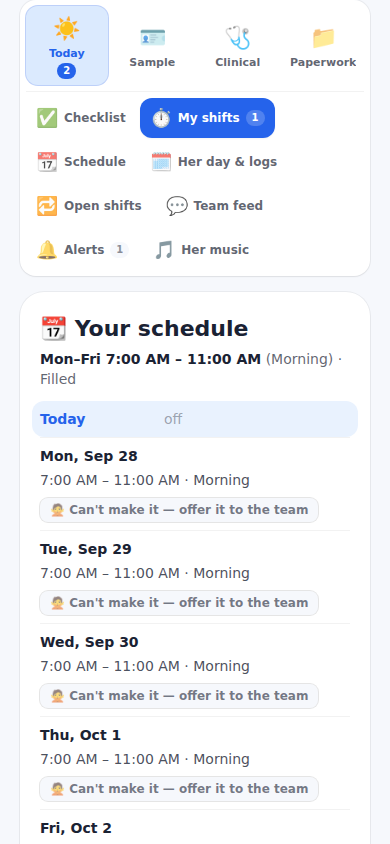
A professional clocks in and out from their dashboard, with lunch and rest breaks; the hours add up into the pay period's timesheet and the invoice they send you. When the family set the house and left Clock in and out only at the location on, both clock in and clock out are checked against the phone's location at the tap (see Clock in and out only at the patient's home). Can't make it releases a shift as an offer that another team member can claim from Open shifts; the family can also post open shifts. The reason a professional gives goes privately to the family (see Calling out of a shift); Open shifts never shows it.
One person, one shift at a time. A professional who works for several families with the same sign-in cannot be on the clock in two homes at once: a Clock in while on a shift in another home is refused with the words “You're clocked in at Debbie's home. Clock out there first.” (by that patient's name) and an Open Debbie's dashboard button, and a shift typed in or a time fixed that would overlap their shift in another home is refused the same way. The agency office only ever hears “Not available then.”, and the family a plain line that the time overlaps another shift on record; neither ever hears another family's name.
Hours worked are always paid. If a required care task or photo is missing, the shift is flagged for your review; nothing is held. You decide which checklist items and logs matter for a shift (vitals logged, the end-of-shift list, a photo): on each item in Shift checklists, Flag the shift if missing is on unless you turn it off. A shift with everything in is Complete. When something is missing, the professional sees what it is before they clock out and can add it, but Clock out always works, with an optional note; the shift then reads Needs review, and you and the professional are told by email.
Reviewing a flagged shift. The days on an invoice are listed on it, and a shift that needs review shows what was missing and the professional's note. Mark reviewed (a note is optional) or Ask the professional to complete it; a missing item added later makes the shift Complete on its own. Approve on an invoice is never blocked: the invoice lists the flagged days with a Review link for each, and one tap on Approve and mark reviewed approves the invoice and marks those days Reviewed, with who and when kept on each day. Mark paid is never blocked either. A daily email says how many shifts need your review.
A bonus is an extra. If you set A flat bonus only on complete or reviewed days for a professional, an invoice with a bonus still reaches you when a day on it is flagged; approving it marks the days reviewed and approves the bonus, and Request changes lets you pay the hours without the bonus. The base hours are never held. The professional signs an acknowledgment of these rules during Getting started; anyone who signed the earlier version keeps their signature and does not sign again.
The end-of-shift summary (October 21). When a professional taps Clock out, a short summary of what was logged under their name during the shift appears first; Confirm and clock out keeps an optional note on the shift, and Send to the family puts one line on the care-team feed, Shift summary from Jewel · 4.5 hours, with what was logged and the note behind a tap, plus a phone notification with fixed words. Nothing about the shift is emailed or texted. A first clock-in in your home also waits until the professional's Getting started reads Trained (see Trained before the first shift).
What it looks like
Screens at phone width, with sample names — no real person’s information.