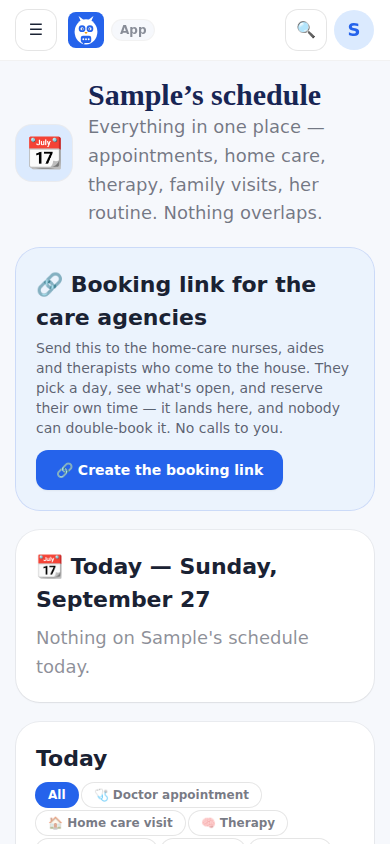
The Schedule, named after the patient in the menu (Debbie's Schedule), is the one calendar for everything: care shifts, therapy, appointments and visits. It opens on a real calendar across the top, Month, Week and Day (Day first on a phone), with everything in its own colour; for the owner and caregiver-role accounts it also shows the home's shifts from the Weekly schedule by status (see The calendar). Picking a day in Month lists it in the day card under the calendar. For owner and caregiver-role accounts it also carries a booking link for the care agencies: I can just give them a link. Copy message copies a line ready to text or email: Book a time to visit Debbie: pick a day and an open time, and it's held for you. No double-booking., then the link. The link has no end date. In a text message or a chat, the link shows a card that reads Book a visit with Debbie with a calendar and the ExpressAgain logo: the first name only, never a photo, the address or anything about health. On the public booking page the person booking first chooses the type of visit (Physical therapy (PT), Occupational therapy (OT), Speech therapy (SLP), Nursing (RN / LPN), Home care, Doctor or nurse practitioner, or Something else), so one link can go to everyone and the Schedule shows each visit by its type, such as Occupational therapy (OT) visit — Amedisys; then they pick a day and an open hour and it is reserved; taken times show a label only, never notes or medical information. Visit Planning shows the same held times so a family visit never lands on top of a nurse's hour.
The booking link also creates the clinician's login. Your booking link is one you send out, so booking through it counts as your invitation. The booking form asks for the person's email and a cell, and carries a switch, Create my ExpressAgain login so I can see Debbie's care, on unless the person turns it off, with one line under it: You'll get a sign-in link by email. Debbie's family can remove you from the Care Team at any time. When they reserve the time with the switch on, the app seats them on the Care Team exactly as Add to your home team does: a single-use invite with the role taken from the type of visit (a physical therapy visit makes a Physical therapist (PT) login, occupational therapy an Occupational therapist (OT), speech therapy a Speech therapist (SLP), nursing a Nurse (RN / LPN), home care a Home health aide / CNA / companion, and a doctor's visit a Physician (MD / DO / NP / PA)); Something else names no role, so the form asks for a type of visit that matches their role or for the switch to be turned off. The same welcome email the family's invites send goes to the address they typed, with their name and contact already filled in; they choose a password and sign in at the IDC Team sign-in, and their login then sees the shared care plan — the day plan, medications, readings and notes — never the family's private space or money. The confirmation reads Your sign-in link is on its way to the address. Someone who already signs in to the patient's care team with that email gets no second login: the visit is attached to their login and the confirmation says so. A person the family removed from the team is not invited again by booking. At most 20 logins can be started from one family's link in a day. Visits booked before the login existed are not lost: when a person joins (with a code from Give access on their card, or through the booking link's own welcome), every visit they booked through the link under the same name on this family's schedule, and not cancelled, becomes theirs, and the care-team dashboard says once, N visits you booked earlier are now on your schedule, with a tap to the Schedule; the family's page then reads Joined by booking a visit for them too.
The link does not change: share it once. The same link works for every visit after the first, so a professional who booked once never needs a new one (Make a new link under the Schedule is the one way to turn the old one off, for everyone at once). After each booking the confirmation screen says Next time, open this same link, or sign in and tap Book my next visit, and offers Save this link, which copies it. The person's emails say the same with the link in them: the welcome email when the booking made their login, or a short booking confirmation (the day, the time and the link; nothing else) when they left an email and no welcome went. Signed in, a professional books the next visit from the Book my next visit card at the top of the care-team dashboard, with Next week, same time in one tap; it is the same booking as the link, so nothing overlaps.
What the family sees. On Care Team, under Add to your home team, the invites list shows the person as Booked a visit · invite waiting, with Copy link, Resend email and Cancel invite; the daily reminder goes out until they finish, like any other invite. Once they create the login, the Home team row and the logins list read Joined by booking a visit with the date, and a card on Doctors, nurses and clinics with the same email shows it under Signs in. The existing controls apply: Manage, then End relationship or Remove access now, and the login is off the team.
The Schedule and the appointments are two different things: a doctor's visit is booked under ID Care Plan → Appointments (with where to go, what to bring, the ride and who goes along) and appears here the moment it saves, with its badge and an Open in Appointments link; the schedule itself stays the whole life — the dentist, the nails, the car, visitors, the home team's shifts. Filters: All, Appointments, Home team, Family.
More than one day: a trip, or anything that runs over several days, is one entry. In + Add to schedule pick the kind (Travel opens More than one day by itself), then the First day and the Last day; the line under them reads, for example, Oct 9 – Oct 12 · 4 days. Start is the time on the first day and End the time on the last; for a trip both are optional, and without them the whole days are taken. The entry shows under every day it covers: Today and the chosen day say Travel · day 2 of 4, the calendar shows it on each of its days (a bar in Month, the all-day row in Week and Day), and Coming up lists it once with its dates.
Those days are taken for everyone who books: the agency's booking link and Visit Planning grey them out and say Away — not available Oct 9 – Oct 12, and a family visit is not booked inside them. Visitors see only the word Away and the dates, never where the family is going. The Status Board, the patient's Day page and the care team's dashboard carry one line: Away today, or Away soon. A trip saves even when something is already booked in its days, and the Schedule then lists them — While away: 3 things are booked in these days — so the family can move or cancel each one. Anything else that runs over several days follows the usual rule: nothing overlaps.
Coming up lists everything booked for the next six months, by month — the first two months open, later ones a tap away — so an appointment in November is there in October. Past keeps the last 60 days.
When someone books through the link, the family hears about it: one line on the team feed (Amy Chen, PT booked a visit · Wed Oct 14 · 10:00–11:00 AM), New on the calendar at the top of Appointments and one line on the home page until you have looked or until its day has passed, whichever comes first, and a phone notification, A visit was booked, to whoever runs the account, the caregiver role and the circle's care logins under Visits booked. A visit cancelled or moved says so the same way. The evening before and an hour before a professional's visit a reminder goes out too. To see the whole Schedule in your own calendar app, use Put this calendar on your phone, under the title here and on Appointments.
Step by step
- 1Open the Schedule and tap + Add to schedule.
- 2Pick Travel (or any kind) and type a title, for example the city and why.
- 3Pick the First day and the Last day, and a time on either if it matters.
- 4Tap Save. Every day it covers shows on the calendar, and those days are taken for anyone booking.
- 5If the Schedule says While away, move or cancel what is listed.
What it looks like
Screens at phone width, with sample names — no real person’s information.